How-to guide
From sign-in to on-screen scores.
Scoreline turns a match into a live, broadcast-ready scoreboard for snooker, pool and darts. Here's everything you need to run your first match and get it on screen in OBS.
1 · Create or join a club
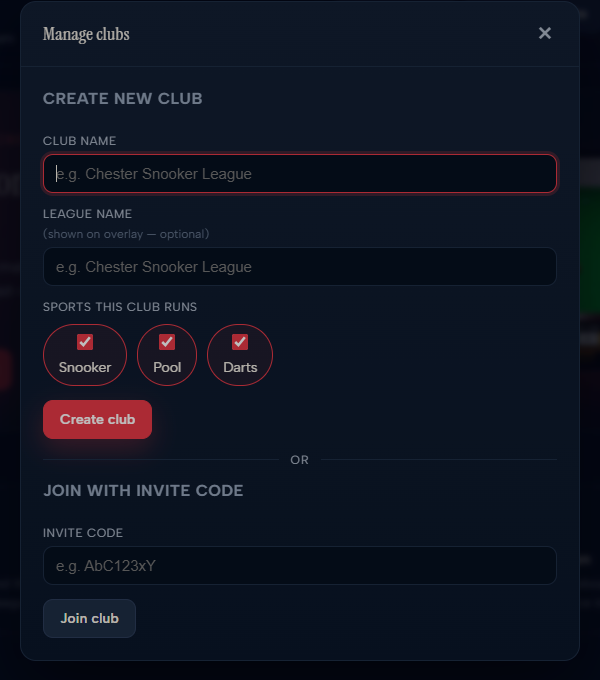
A club is your team space — it owns its matches and the branding shown on the overlay (your league name). You'll create one the first time you sign in.
- Create new: on the dashboard, under Add a club, enter a club name (e.g. your venue) and an optional league name that appears on the overlay. Click Create club.
- Join existing: if a teammate already has a club, ask them for their invite code and paste it into Join with invite code.
 1
2
3
4
1
2
3
4
- 1Name your club — usually your venue or league.
- 2League name (optional) — this is what shows on the overlay.
- 3Tick the sports it runs, then Create club.
- 4Been invited instead? Paste the code under Join with invite code.
2 · Start a match
On a club card, use the new match form:
- Pick a sport — Snooker, Pool or Darts. The card you choose sets which format field appears next.
- Enter Player 1 and Player 2.
- Set the format: Best of (frames) for snooker, Race to for pool, or Best of (legs) for darts.
- Optionally add a match label (e.g.
Division 1 · Round 3) shown on the overlay, and for snooker toggle the break counter / ahead tracker. - Click Create & open scorer — you'll go straight to the scorer.
 1
1
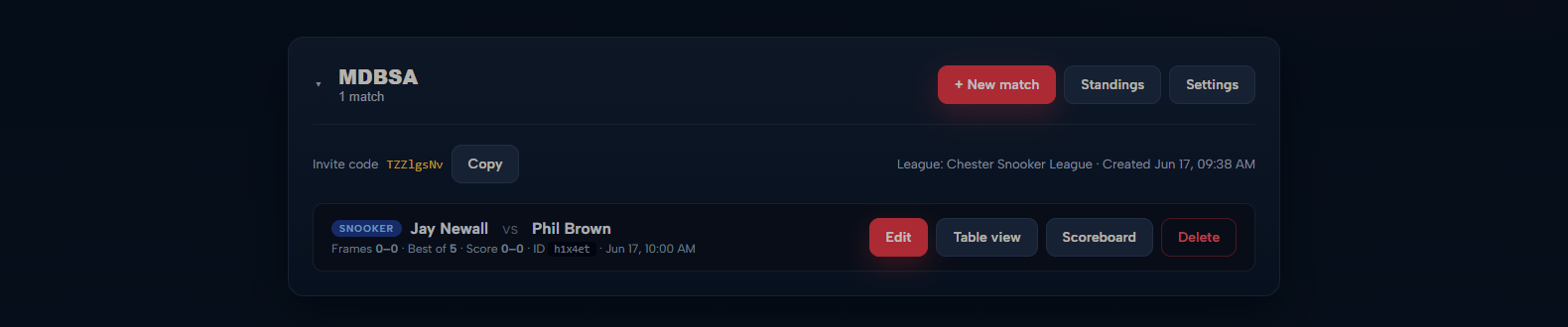
- 1On your club card, hit + New match to open the new-match form.
3 · Score the match
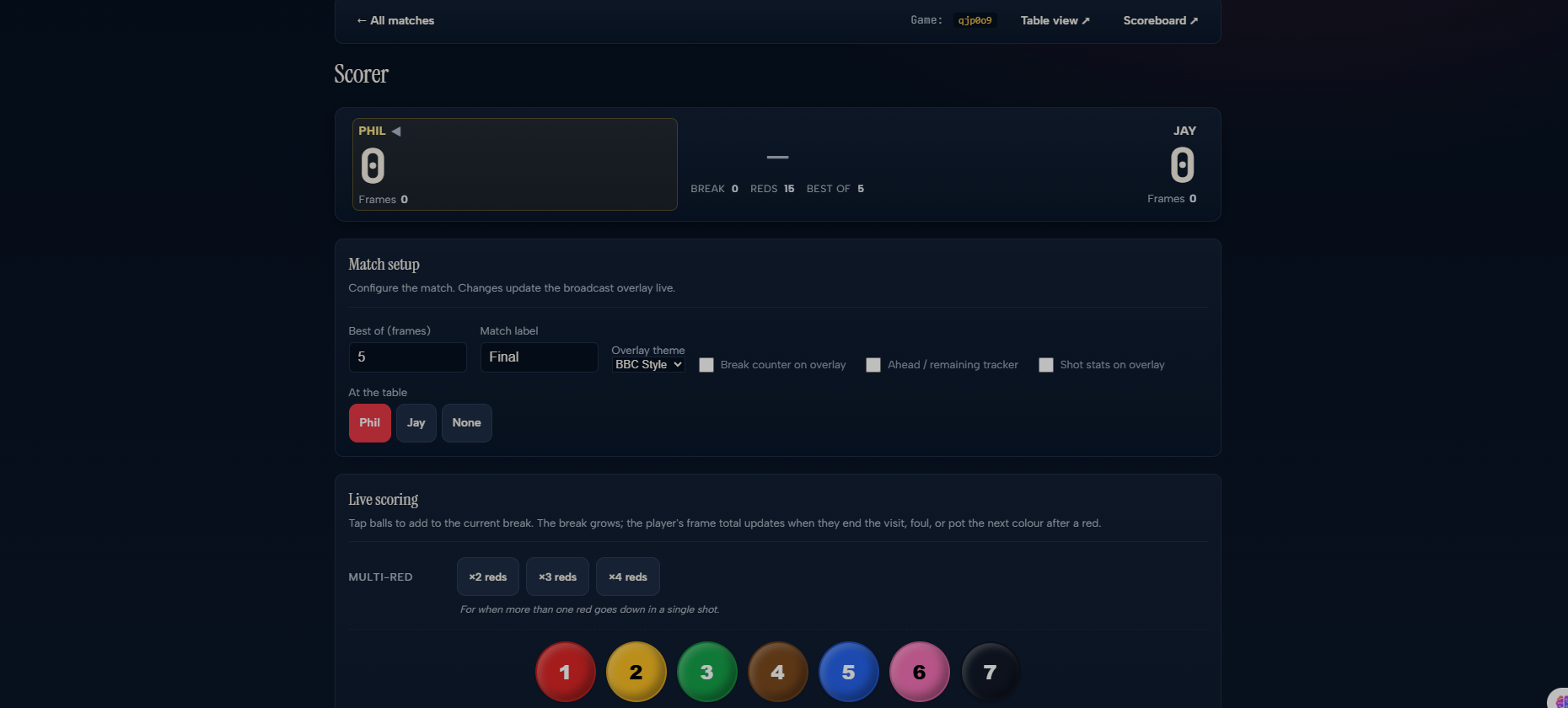
The scorer is your control panel during play — tap to add points/frames, change who's at the table, and manage breaks or legs. Everything you do here updates the on-screen overlay instantly.
You can reopen the scorer any time from the dashboard via the Edit button on a match.
 1
2
3
1
2
3
- 1Live score, current break and reds remaining — exactly what your viewers see.
- 2At the table — set who's on a visit so the overlay highlights them.
- 3Tap the coloured balls to add points; the break and frame total update instantly.
4 · Put it on screen in OBS
Each match has two on-screen views, opened from the match's buttons on the dashboard:
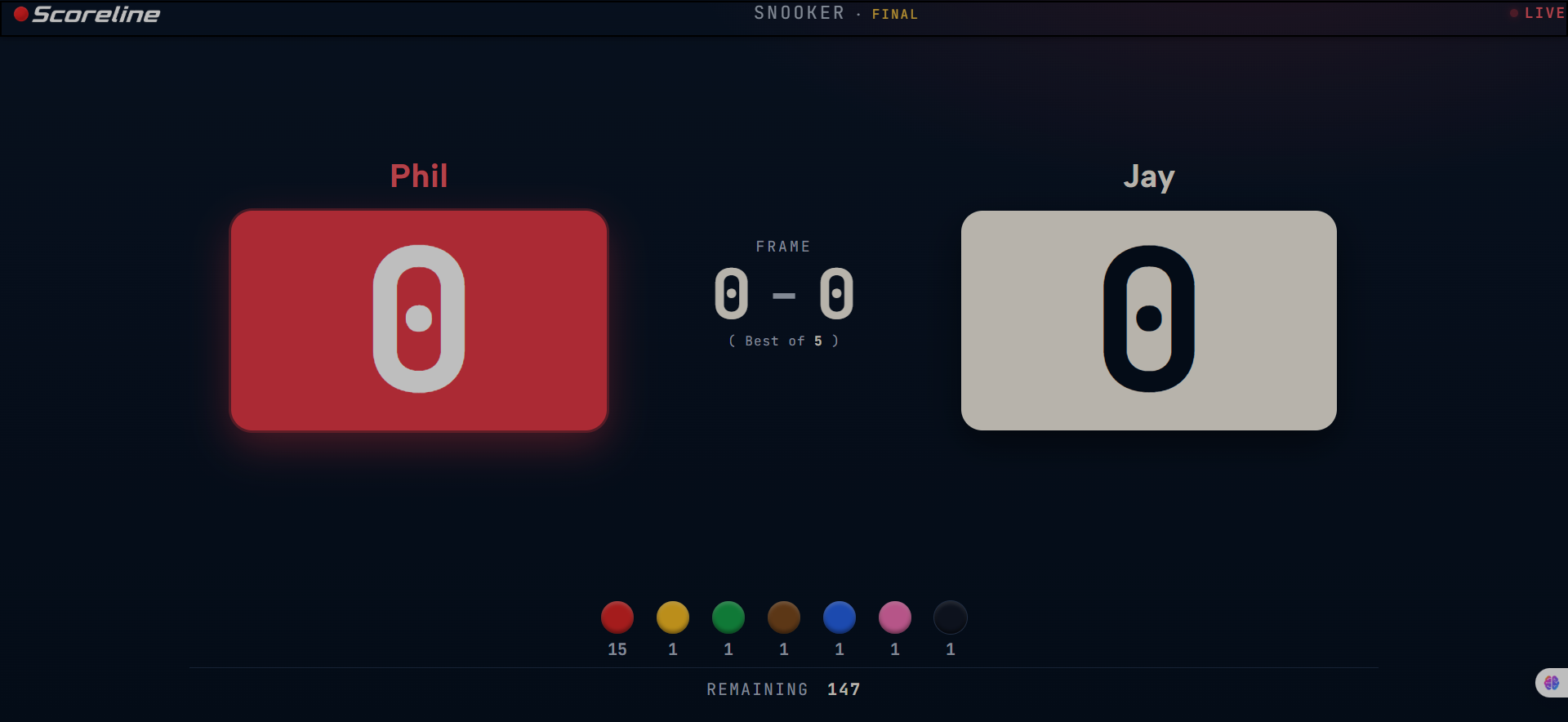
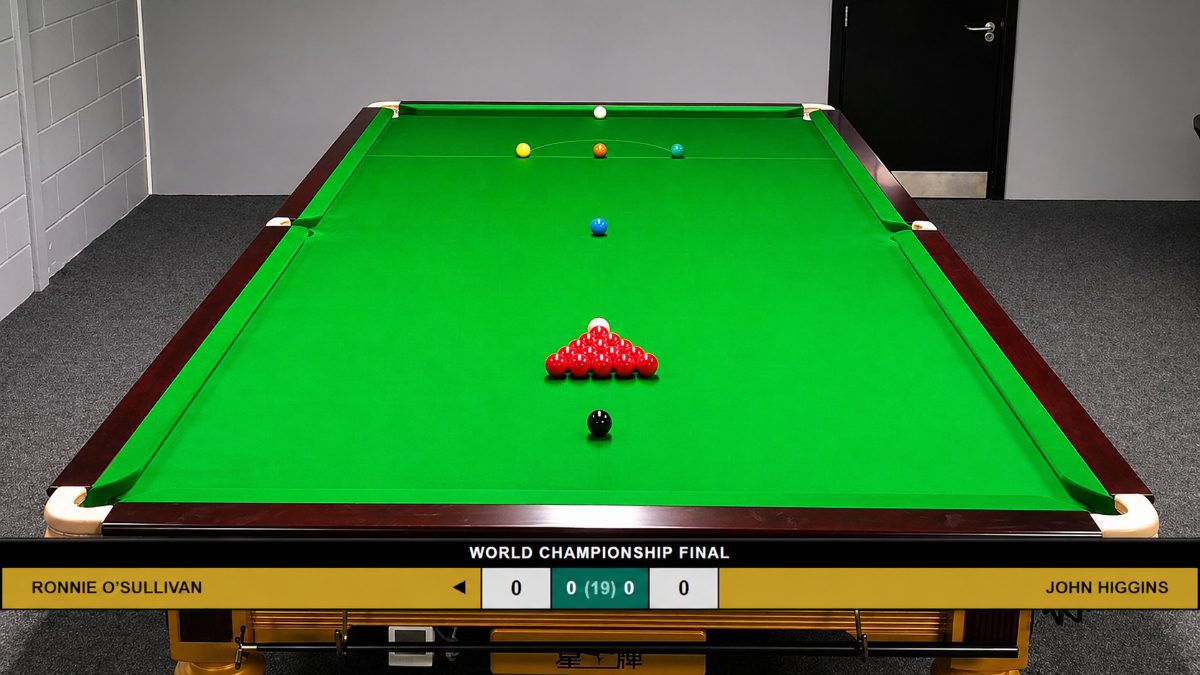
- Scoreboard — a broadcast lower-third / overlay, transparent background, ideal as an OBS layer over your video.
- Table view — a full-screen scoreboard for a TV or second monitor at the venue.
To add the overlay in OBS:
- Click Scoreboard on the match — copy the URL from the new tab.
- In OBS: Sources → + → Browser.
- Paste the URL, set Width 1920 / Height 1080, and click OK.
- Position the layer over your feed. Scores update live as you use the scorer — no refresh needed.

5 · Invite people to your club
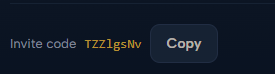
Every club has an invite code shown on its card. Share it with anyone who should help score matches — they sign in, then use Join with invite code. Hit Copy on the club card to grab it.
 1
2
1
2
- 1Your club's unique invite code.
- 2Copy it, then send it to whoever's helping you score.
6 · Sport formats
- Snooker — first to win the majority of a best-of-N frames match. Optional break counter and ahead/remaining tracker on the overlay.
- Pool (UK 8-ball) — race to N frames; first player to reach the target wins.
- Darts (501) — standard 501, best of N legs; the scorer handles visits, busts and checkouts.
7 · Plans & billing
Scoring, leagues, rankings, player profiles and the OBS overlay are free forever — no card needed. Paid plans (Club Pro and Club Growth) add club-growth tools as they roll out.
- See your plans: open Account → Plans & billing. Each tier lists what's included, and the toggle switches between monthly and annual pricing (annual saves two months).
- Upgrade a club: under Your clubs, hit Upgrade to Pro or Upgrade to Growth. You'll be taken to our payment provider, Stripe, to start a 30-day free trial — you're not charged until the trial ends.
- Manage or cancel: once on a paid plan, use Manage billing to update your card, switch plans or cancel. Cancelling keeps your features until the end of the period, then reverts the club to free.